Find a specific dataset using keyword search and faceted filters
Narrow results by platform, domain, owner, tag, and glossary term
Judge whether a dataset offers the guarantees your use case needs
Discover assets you didn't know existed by browsing by domain or glossary
Take-home lab: find a dataset you can stand behind, starting from a business question alone
The Search Bar: What It Actually Searches
Searches across asset names, descriptions, tags, glossary terms, column names, and owner names

Partial-word matching: "revenu" still finds revenue_by_region, revenue_by_vertical, etc. -- DataHub matches on the start of a word, not just complete words
Type your query and press Enter -- results rank by relevance, not alphabetically
The top result is not always the right one
One query fans out across names, descriptions, tags, terms, column names, and owners simultaneously -- searching "PII" also returns assets whose descriptions mention PII and assets whose columns carry the tag. Relevance ranking is good but not perfect: treat the top result as a candidate, not an answer.
Reading the Results Page
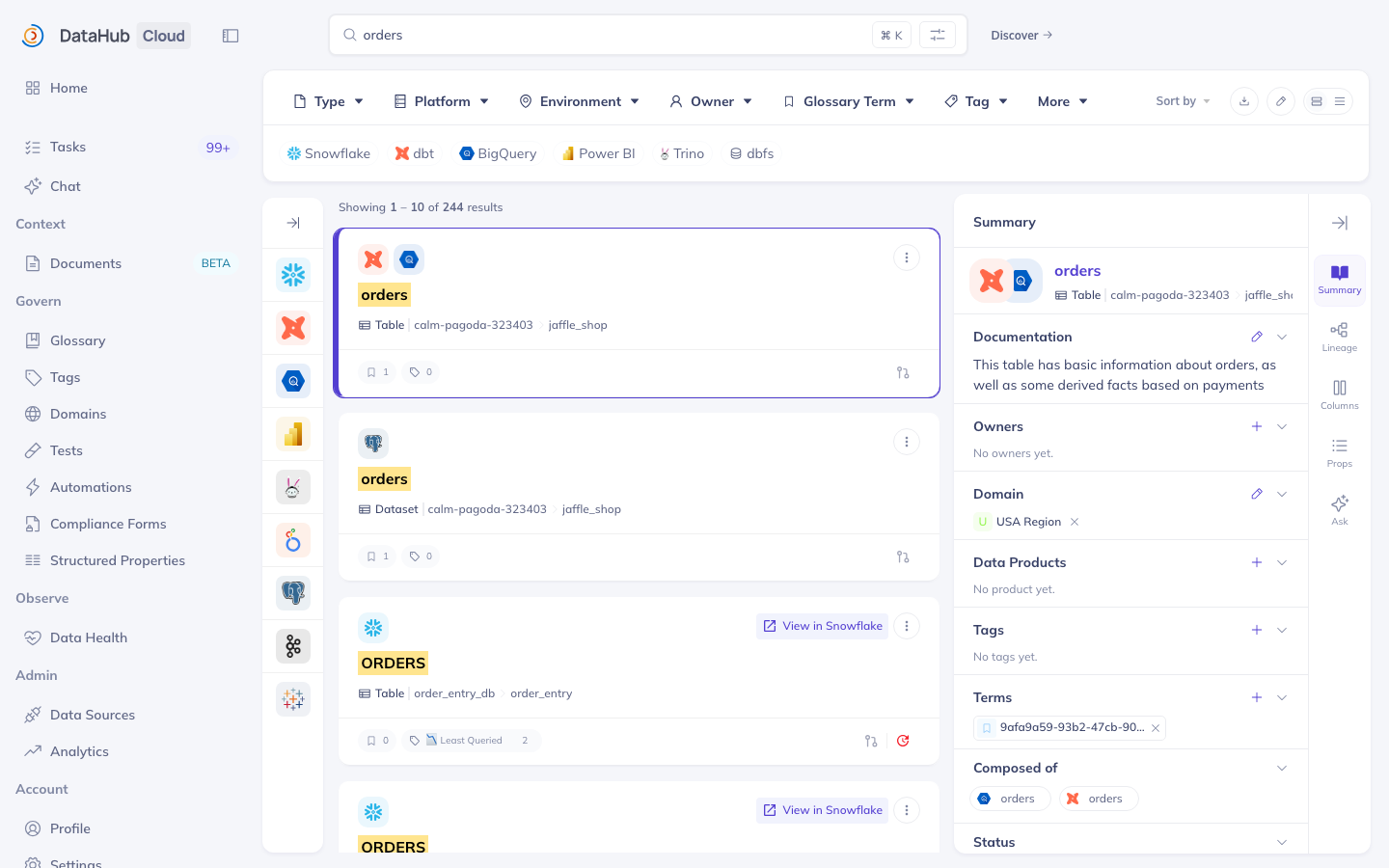
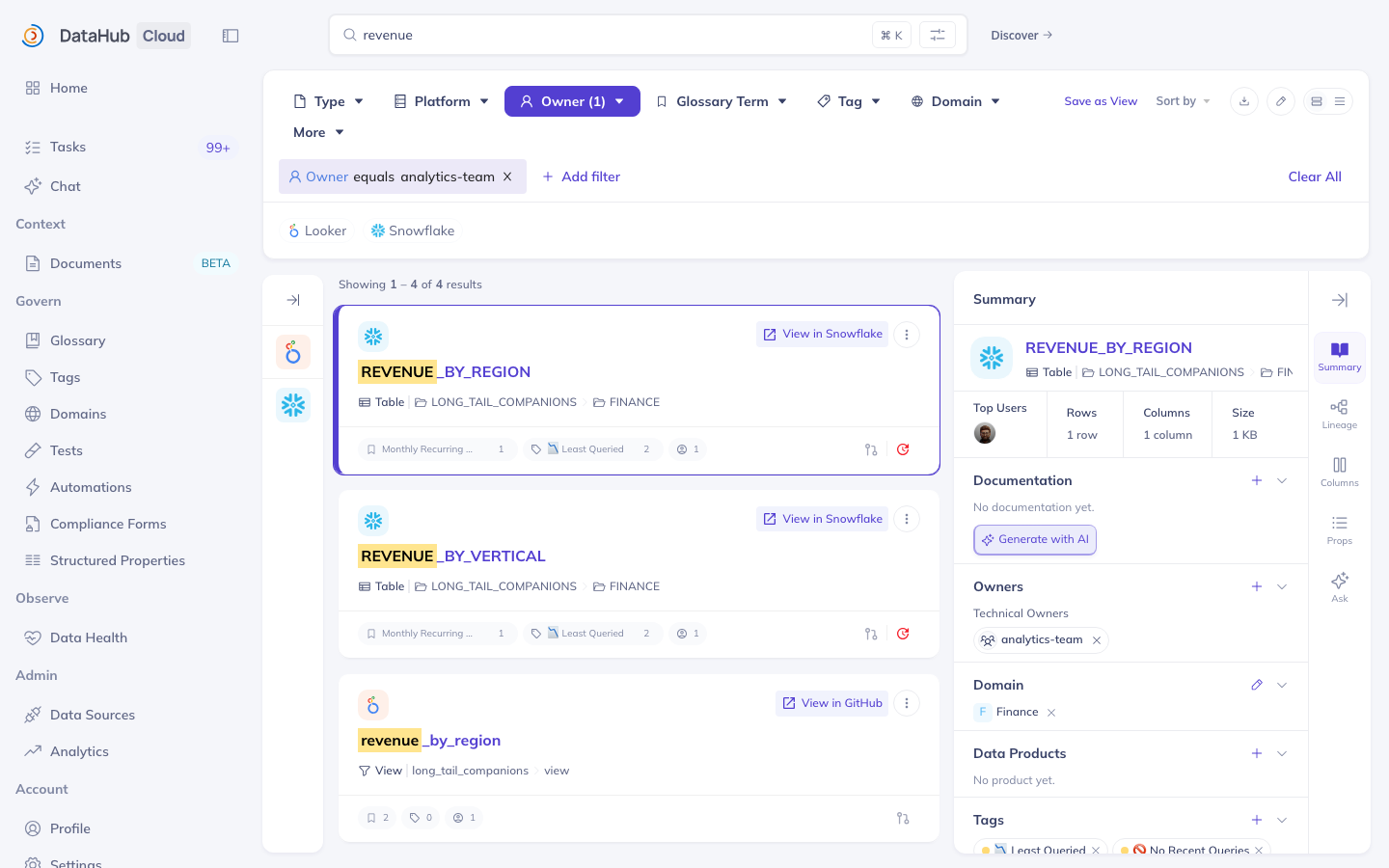
Filter bar across the top: Type, Platform, Environment, Owner, Glossary Term, Tag, Domain
Result card: entity name, type icon, platform badge, description snippet, domain, owner avatars, last updated
Share icon on a result: quick actions including copy URN and copy link
Filters combine with OR within the same facet (check Snowflake + BigQuery under Platform = either) and AND across facet types (Platform: Snowflake + Domain: Finance = both)
Best practice: use Search when you know what you're looking for but not where it is; use Browse (left sidebar: Entity Type > Environment > Platform > Schema) to explore what exists in an area -- a good starting point when joining a new team
Using Filters to Narrow Your Search
Platform filter: pick a platform, e.g. Snowflake, from the filter bar
Owner filter: pick an owner from the filter bar's Owner facet
Domain filter: pick a domain from the filter bar's Domain facet
Tag filter: pick a tag, e.g. PII, to find all PII-tagged assets across any platform
Glossary term filter: pick a term, e.g. Monthly Recurring Revenue, to find everything linked to that term
Tip: clicking a tag or glossary term on any dataset page runs an instant filtered search for all assets with that label
Facets stack -- Platform plus Owners at the same time is fine. The glossary term filter deserves special attention: it's the fastest path for anyone who knows the business concept but not the table name.
When Fuzzy Isn't Enough: Exact Phrase Search
Wrap any phrase in double quotes to match it exactly
Example: "daily active users" finds assets where that exact phrase appears in the name, description, or column names
Use this when you know the business terminology precisely, or to cut through noise when a broad keyword returns too many results
Additional operators: minus to exclude (revenue -test), asterisk wildcard (revenue* matches revenue, revenue_daily, revenue_monthly), and (for power users) field-scoped queries using a "/q " prefix, e.g. /q platform:snowflake
Without quotes every word matches independently and the list is long; in quotes, only assets carrying the exact string remain. When you know the exact business name of a metric, quoting it is usually the fastest path.
Start Broad, Then Filter Down

Start with a general keyword: revenue
Read the result count and scan the filter bar to understand the landscape
Then apply filters: Domain → Finance, Platform → Snowflake
Narrow further: Tag → Certified or Owners → analytics-team
Do NOT guess a specific table name upfront -- you will miss better matches
The most common new-user mistake: typing the full table name from memory, getting zero results, and concluding the table isn't cataloged. Go the other way: searching "revenue" shows you the lay of the land, filtering to the Finance domain narrows it, and one more filter leaves a handful worth evaluating. Along the way you discover assets you'd never have found by guessing names.
Don't Trust the First Result Blindly
Before selecting any asset, verify: description -- does it describe the data you actually need?
Domain -- is it in the right business area?
Owner -- is it owned by the team you'd expect?
Status badge -- is it marked Deprecated?
If still unsure, open the lineage tab to understand how it was built
If it's marked Deprecated: don't build net-new business activities on it -- check the description or downstream lineage for its recommended replacement
Deprecated assets still appear in search results -- they are not hidden. The top result can be the deprecated version of exactly what you asked for. That's why you verify before any real use: check the description, the domain, the owners, and lineage.
When You Don't Know What to Search: Browse by Domain


Click Domains in the left navigation (not the search bar)
Select a business area: Finance, Marketing, Engineering, etc.
Browse the assets cataloged within that domain
Use this to build situational awareness -- "what does the Finance team have in the catalog?"
Best practice: tags are informal, operational labels (e.g. production/deprecated status, project affiliations); glossary terms are formal, governed vocabulary (e.g. PII, Revenue) -- use tags for what you'd tell a colleague in Slack, glossary terms for what you'd put in a compliance report
Browsing is the walk-the-aisles experience: it's how a new team member gets oriented, and how a steward audits whether everything in their domain is present and correctly tagged.
Start with the Business Concept, Not the Table Name
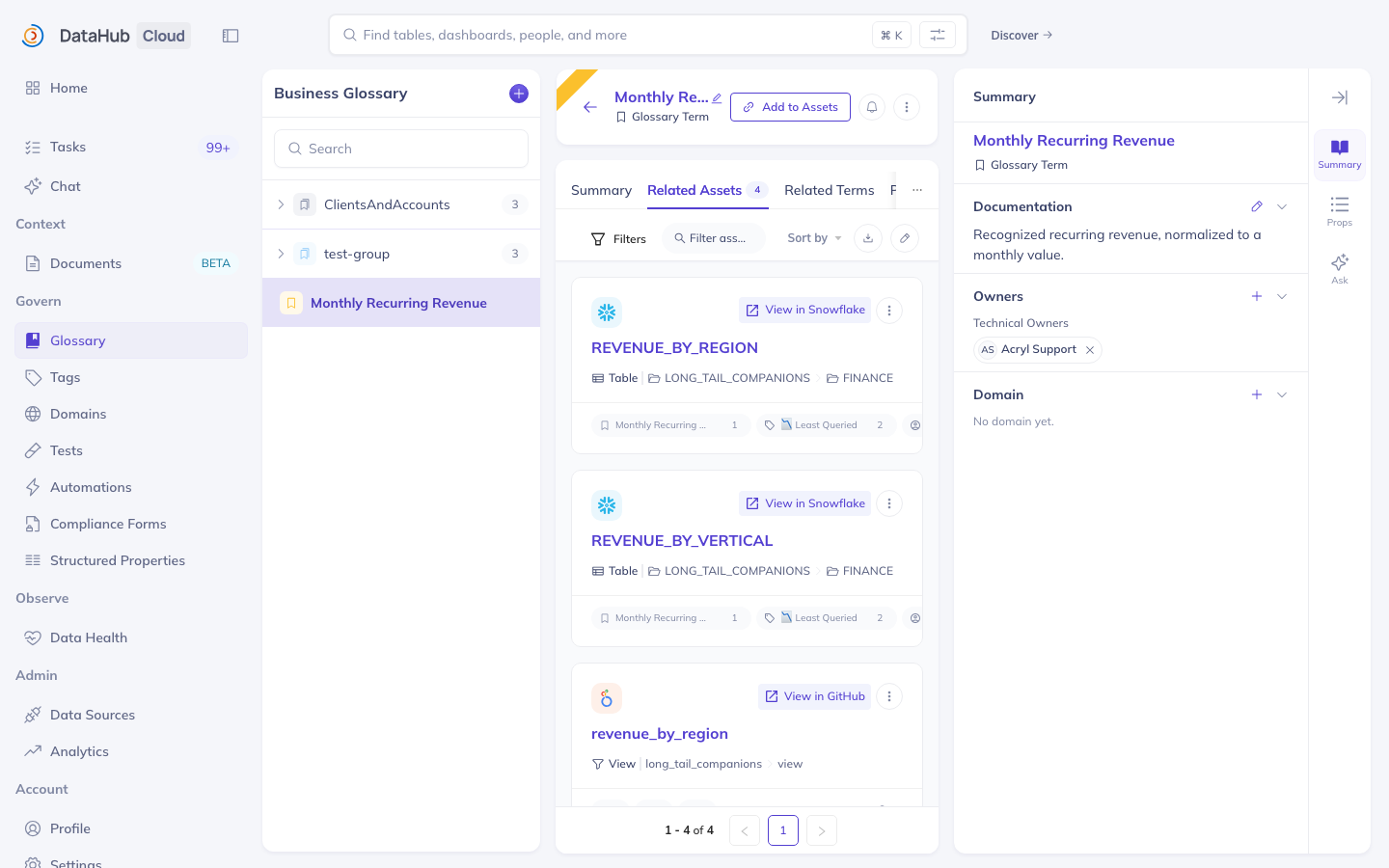
Open Glossary in the left navigation
Find the term you know, e.g. "Monthly Recurring Revenue"
Click into the term page
Click Related Assets -- see every dataset, dashboard, and column tagged with that term
Pick the asset that matches your use case
Glossary terms are a semantic layer over the physical catalog: you don't need to know the table is called fct_subscription_revenue_monthly_v2 -- you need to know the concept is Monthly Recurring Revenue and follow the term to its related assets.
Find Everything Owned by Your Team
Pick your team's name from the filter bar's Owner facet (no need to remember exact spelling -- pick it from the list)
Returns every asset where that team is listed as an owner -- regardless of platform or domain
Combine with other filters: Owners: analytics-team + Domain: Finance
Use this to audit your team's portfolio and spot undocumented or deprecated assets
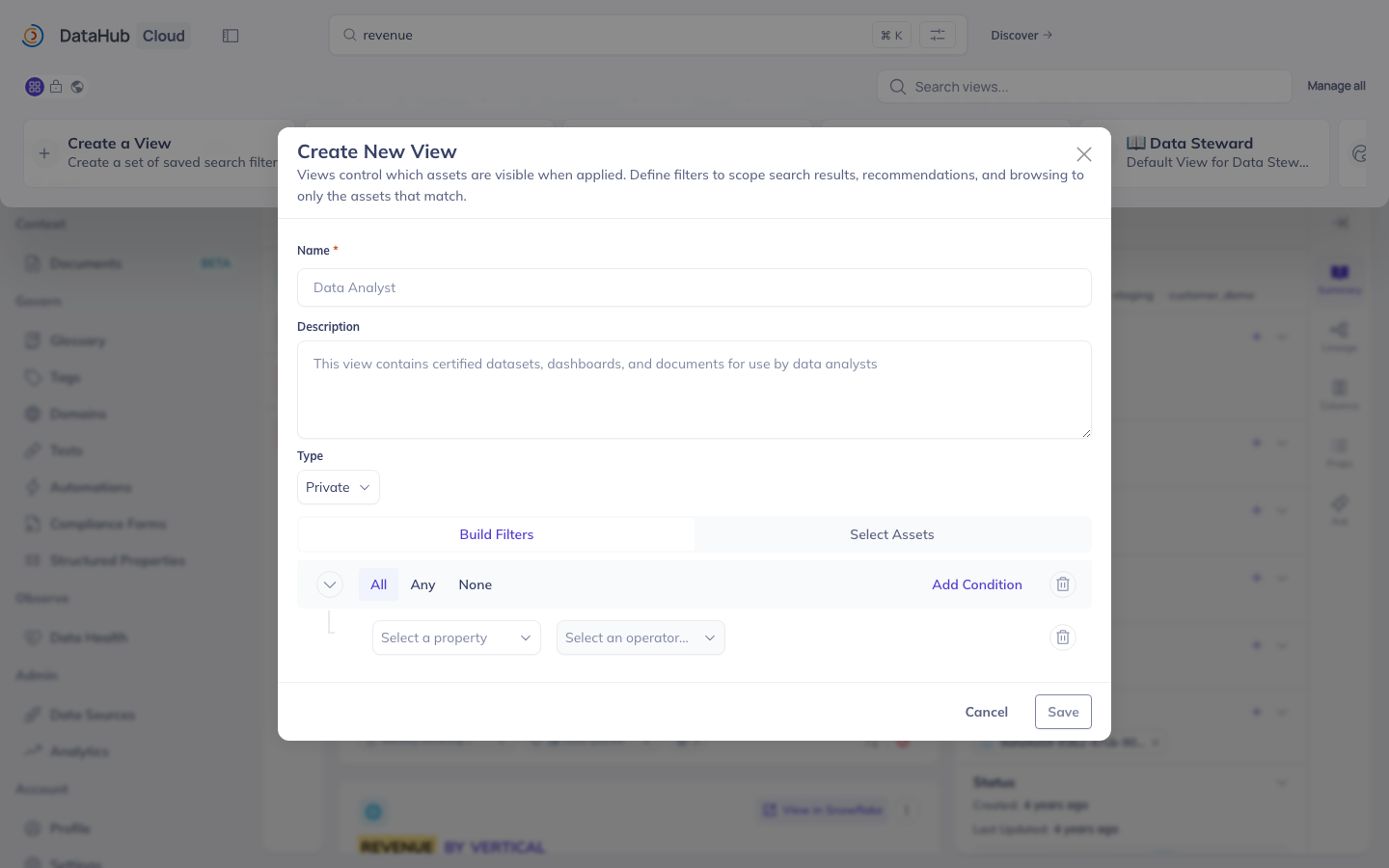
Tip: DataHub Views let you save a set of filters as a named preset (Personal, or Public if you have the right admin permission) for repeat searches
Two audiences get the most from this. Team leads use it to keep the catalog tidy: filter by your team, sort by last modified, and anything untouched for months is a candidate for deprecation. Analysts use it to find what their own team manages. Picking the owner from the panel also avoids typos, because the list only shows owners that exist.
Find the Dataset From a Business Question
Scenario: find the dataset that tracks daily active users by product, owned by the Analytics team
Use only the DataHub sandbox -- no hints, no step-by-step instructions
Find the correct asset
Record: the asset name, its URN, its domain, and why you are confident it is the right one
Time limit: 5 minutes
What are Views?
Views save and share sets of filters for reuse -- think "preset searches"
Private View: only you see it
Public View: everyone in your org can use it
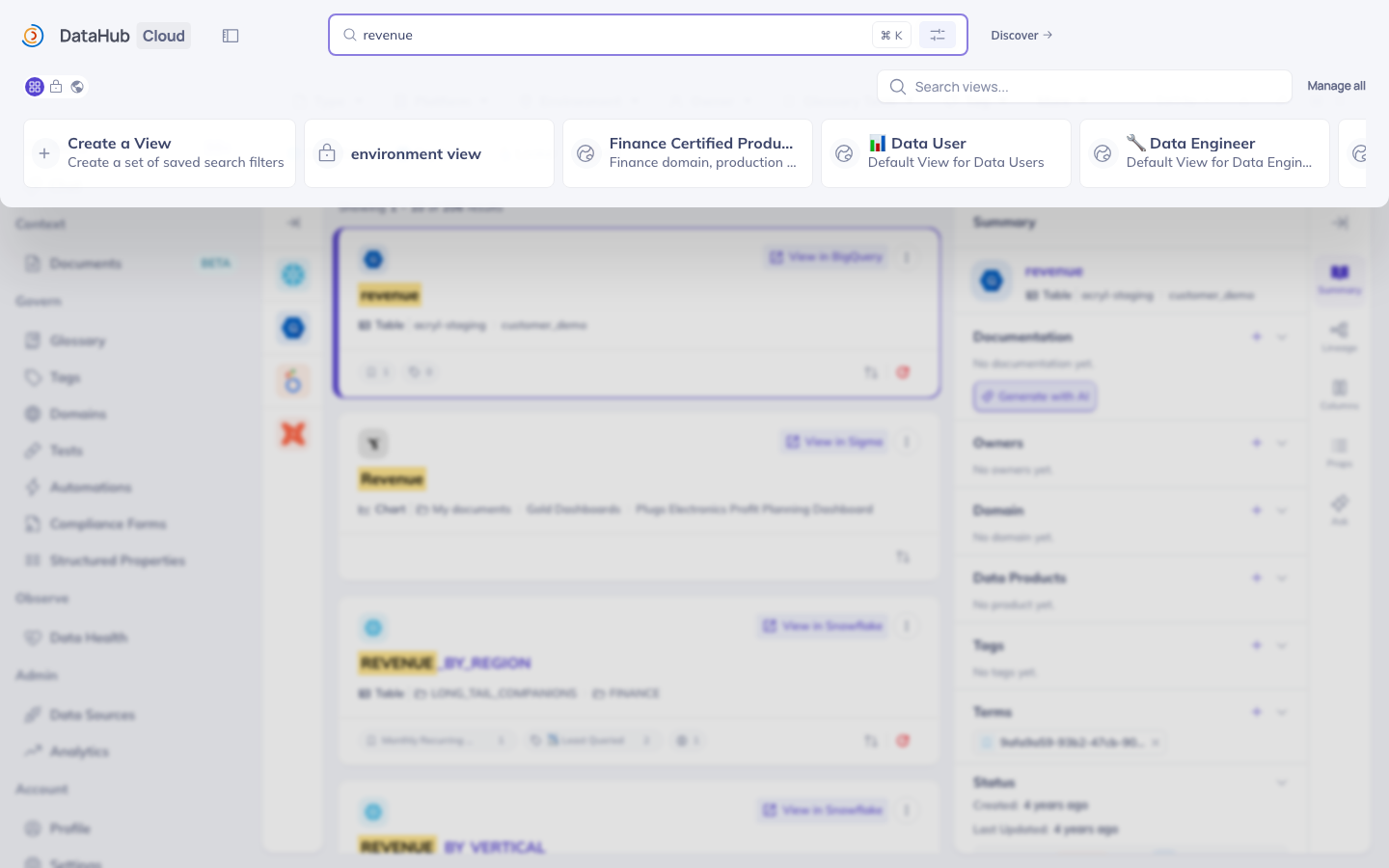
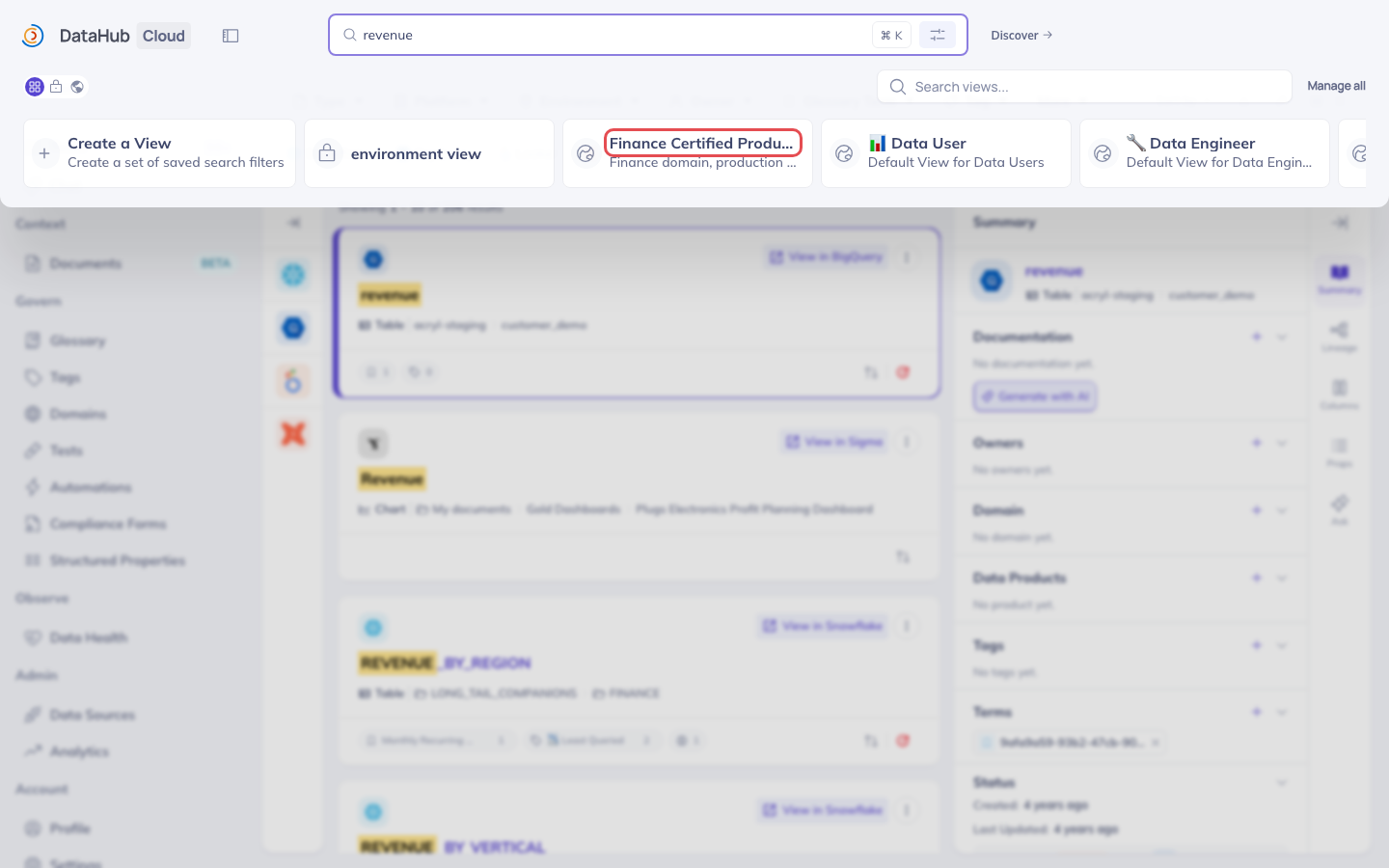
Examples: the built-in "Data User" and "Data Steward" views, or a team view like "Finance Certified Production"
Access from the Views dropdown on any search results page
Think of the filters you re-apply every single morning: platform Snowflake, domain Finance, tag Certified. A view saves that combination once. Personal views are your private shortcuts; public views are shared team presets, and admins can pin popular ones to the home page.
How to Create a View
Run a search and apply your filters (Platform, Domain, Tags, etc.)
Click the View selector in the search bar, then Create View
Name it descriptively: "My Production Snowflake Tables"
Choose the type: Private (any user can create one) or Public (requires the Manage Public Views admin permission)
Access any saved view from the View selector -- filters apply automatically
Here's the step people miss: run the search first, then save. You're saving the active filter state, not a snapshot of the results, so the view re-runs live every time you open it. Creating Public views requires an admin permission; Personal views are open to everyone.
Create a Public View for Your Team's Core Assets
One-time setup, permanent value for every team member
Example: "Analytics Team Portfolio" = Owner: analytics-team (all platforms)
Requires the Manage Public Views admin permission -- if you don't have it, build the filter combination and ask your DataHub admin to save it as a Public View
Share the view name in your team's onboarding docs and DataHub announcements
A well-named public view takes two minutes to create and keeps paying for itself: every new hire starts with a pre-filtered window into the team's assets. It also quietly encourages good governance, because for assets to appear in the view, they have to be certified and in the right domain.
Natural Language Search (Supported Deployments)
Instead of keyword matching, describe what you need in plain English
Example: "tables with customer behavioral data updated daily"
Works even when the words don't appear in the asset name
Requires an admin to configure semantic search for the deployment (an embedding model provider) -- ask your admin whether it's enabled for you
Brief: Screenshot of the search bar with the natural-language query "tables with customer behavioral data updated daily" typed in, captured from a deployment where semantic search is enabled.
Where an embedding model is configured, a query like "tables with customer behavioral data updated daily" works even if none of those words appear in any name or description. There's no mode to switch on -- once your admin configures it, it works alongside keyword search.
Find the Revenue Dataset You'd Trust
Tonight, on your own, using only the sandbox — no hints, no teammates' URNs.
Business question: "Which dataset would you trust to report monthly recurring revenue by region?"
Find the asset you'd stand behind, starting from the business concept — not a table-name guess
Record: the asset name, its URN, its domain, its owner — and two sentences on why you're confident it's the right one
Bring your answer tomorrow morning — we debrief as a group and compare reasoning, not just answers
Summary: Search and Discovery
DataHub search covers names, descriptions, tags, glossary terms, column names, and owners -- not just asset names
Use broad keywords first, then narrow with filters
Always verify: description, domain, owner, status badge -- before relying on a dataset for your use case
When you don't know the table name, start in the Glossary or browse by Domain
Deprecated assets still appear -- check for the red badge
What's next: tonight, complete the take-home lab; tomorrow morning, we debrief